Trying out Musikcube
I recently discovered Musikcube. I’m loving this program. It’s so much easier to use than cmus. I’ve been using Clementine, but I wanted a CLI program. So far the only downside I see is that I can’t import or export playlists. But making new playlists within the program wasn’t hard. Here’s what I’ve learned so far.
Installation
Musikcube is available for Linux, Windows, FreeBSD, and MacOS. Installation information and user guide are available at the website.
I installed on Linuxmint using the .deb for X86_64. No problem with that.
Navigation
- Basically, you move from block to block with TAB. To get to the buttons at the bottom use ESC. When you are in a block you can use arrow keys.
- No matter where you are you can use j,l to change tracks or i,k to change volume level.
- To move fast through the song TAB to the slider that shows the expended time of song and press the arrow keys to move forward or backward.
- Toggle pause with SPACE
- Close the program Ctrl-D
Add Music
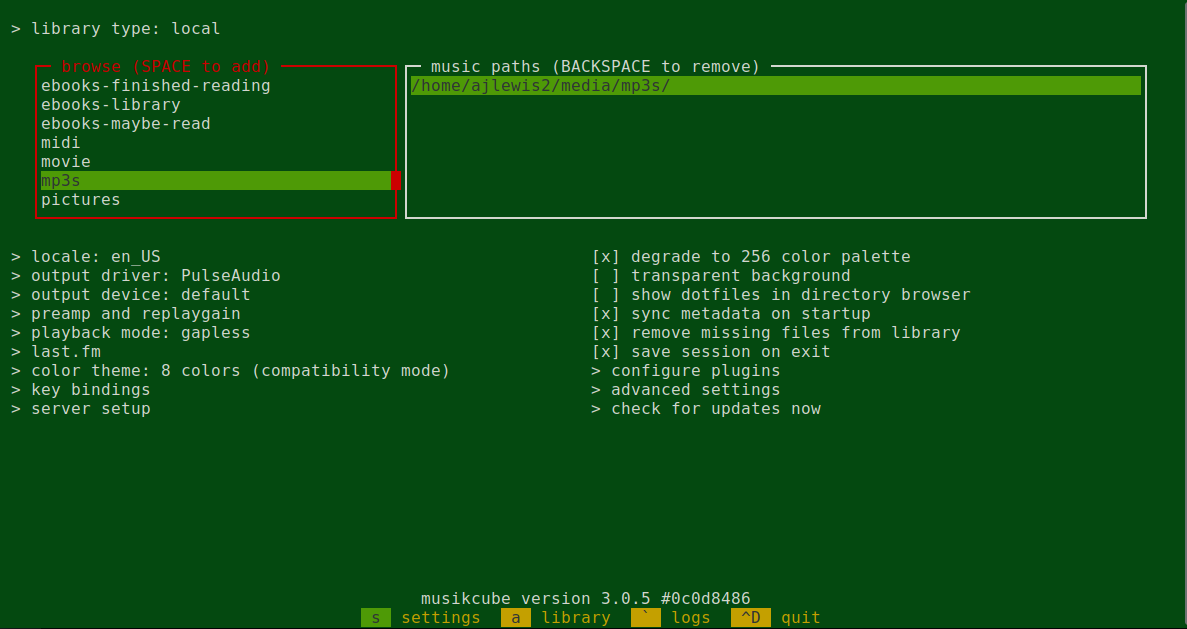 If not already on the
Settings section, type ‘s’ to go there. That’s where the location of
music is added. Browse to the directory location and press SPACE to
enter. To change other settings TAB down and ENTER to change settings.
When finished type ‘a’ to go to the music library.
If not already on the
Settings section, type ‘s’ to go there. That’s where the location of
music is added. Browse to the directory location and press SPACE to
enter. To change other settings TAB down and ENTER to change settings.
When finished type ‘a’ to go to the music library.
Browse
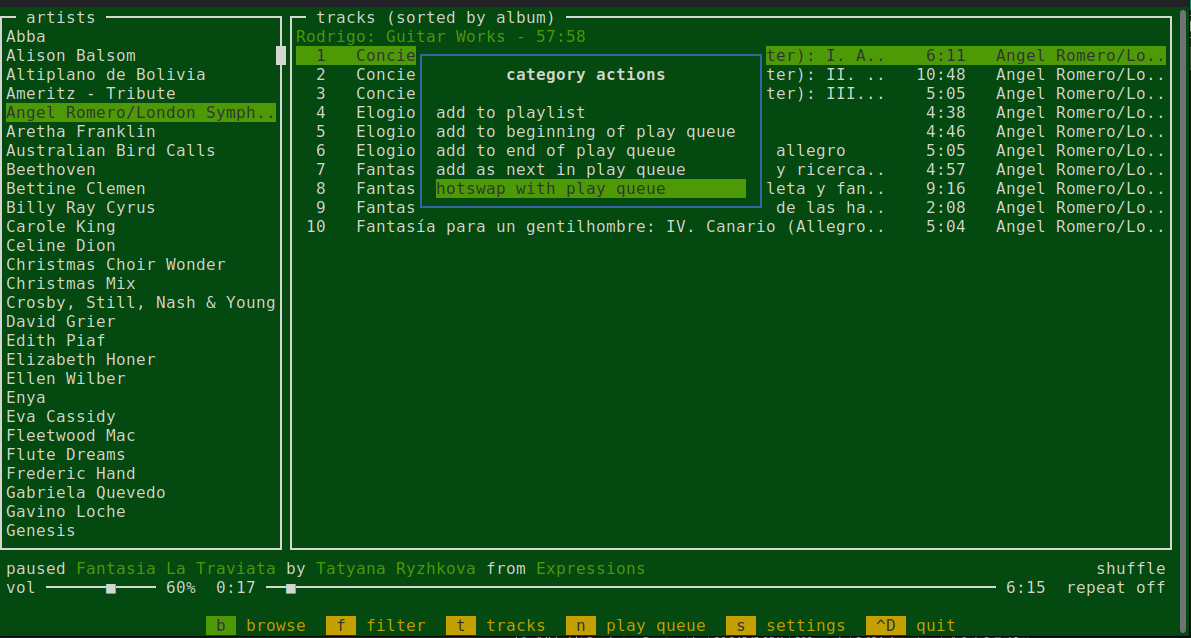 Leaving Settings puts
you back to wherever you were before. So in the beginning after initial
setting I think I landed on ‘browse’ with that ‘b’ button on the bottom
of the screen a slightly different color than the rest. The difference
in color is not easily seen in the default theme so I later changed the
theme (back in settings where TAB works as usual to navigate).
Leaving Settings puts
you back to wherever you were before. So in the beginning after initial
setting I think I landed on ‘browse’ with that ‘b’ button on the bottom
of the screen a slightly different color than the rest. The difference
in color is not easily seen in the default theme so I later changed the
theme (back in settings where TAB works as usual to navigate).
If you are not in ‘browse’ press ESC to allow navigation on that bottom bar of buttons and type ‘b’ to put you into ‘browse’. There you can press keys 1 through 5 to open a different browsing pattern - artist, album, genre, album artist, and playlist. To begin playing the artist or album that is highlighted press ENTER and it will start with the first song. Or TAB to the track listing and use arrows or j,l to navigate to a song and press ENTER.
To put music in the play queue section press M-Enter on the artist or track (on my keyboard that is Alt and Enter at the same time). This brings up a list of options. Hot swap will replace what is currently in the queue with your new selections. Press ESC and ‘n’ to go to the play queue where you will see all the music in the queue. There is also an option to add to a playlist. This program is quite user-friendly.
Filter
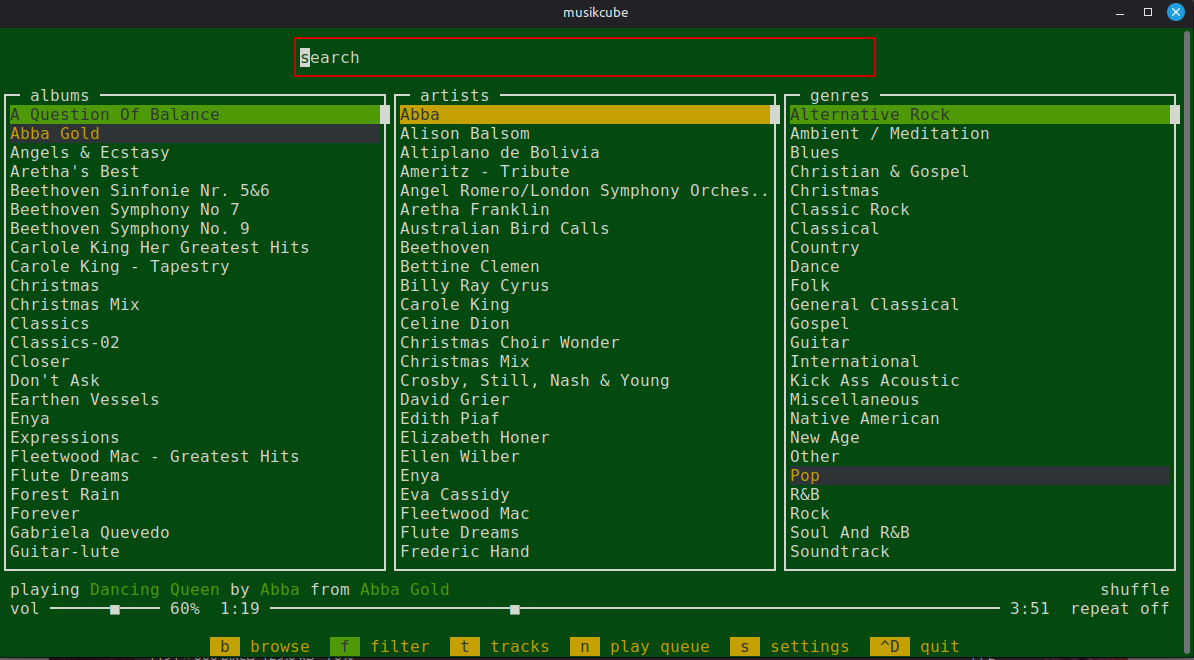
Press ‘f’ and the Filter view comes up. There you can search to narrow down to what you are looking for.
Play Queue
- You can control the queue from any location in the program using the j (back) and l (forward) keys. Volume is controlled with i (up) k (down). Optionally tab to the appropriate area and use the arrow keys.
- Move songs up or down within the queue with Ctrl-Up and
Ctrl-Down.
- Fast forward or back with the slider. Just tab to it and use the left or right arrow keys.
Playlist
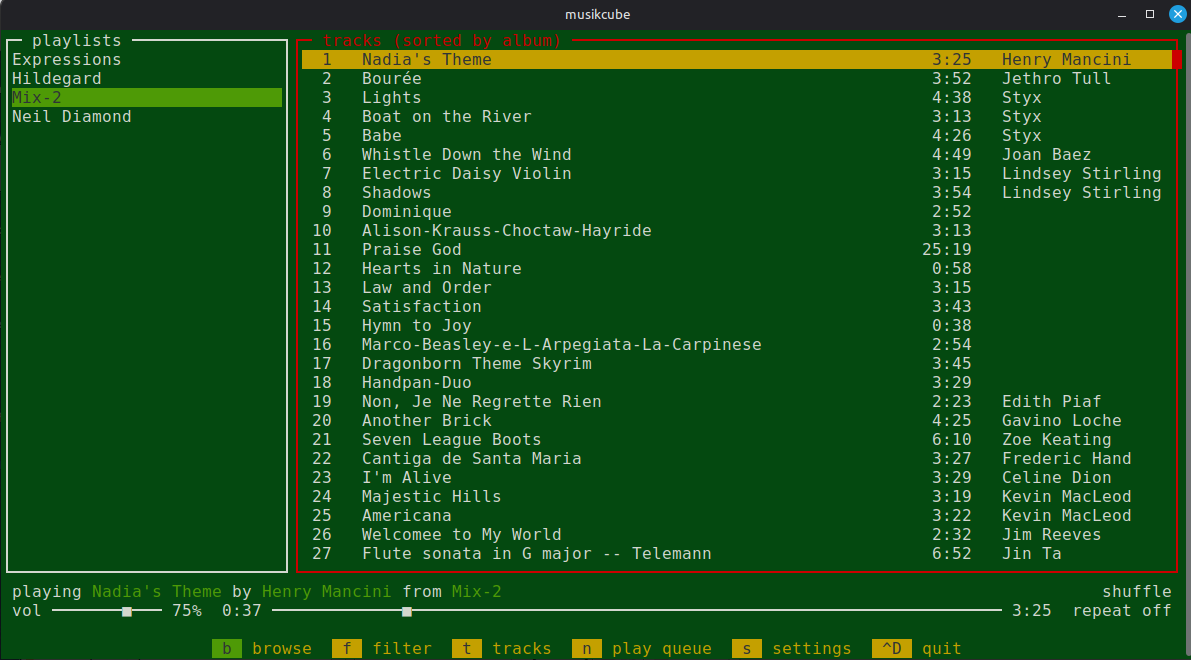 Playlist is selection 5 in Browse.
First some playlists need to be added. Sadly there is no import
feature.
Playlist is selection 5 in Browse.
First some playlists need to be added. Sadly there is no import
feature.
One way to create a playlist is seen in the image above in the Browse
section where it shows the “hotswap with play queue.” At the top of the
category actions is “add to playlist.” That gives this selection: 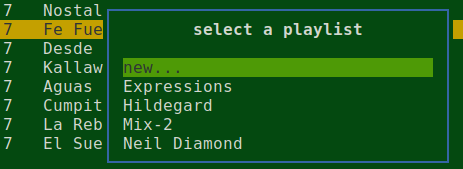
Select “new”, give it a name, and that’s it.
You can select one song and add to a playlist using M-ENTER as well.